Give your class an assignment
An assignment is practice for your class, set to what you taught. Save an exercise with your settings first, then assign it.
Set up an exercise
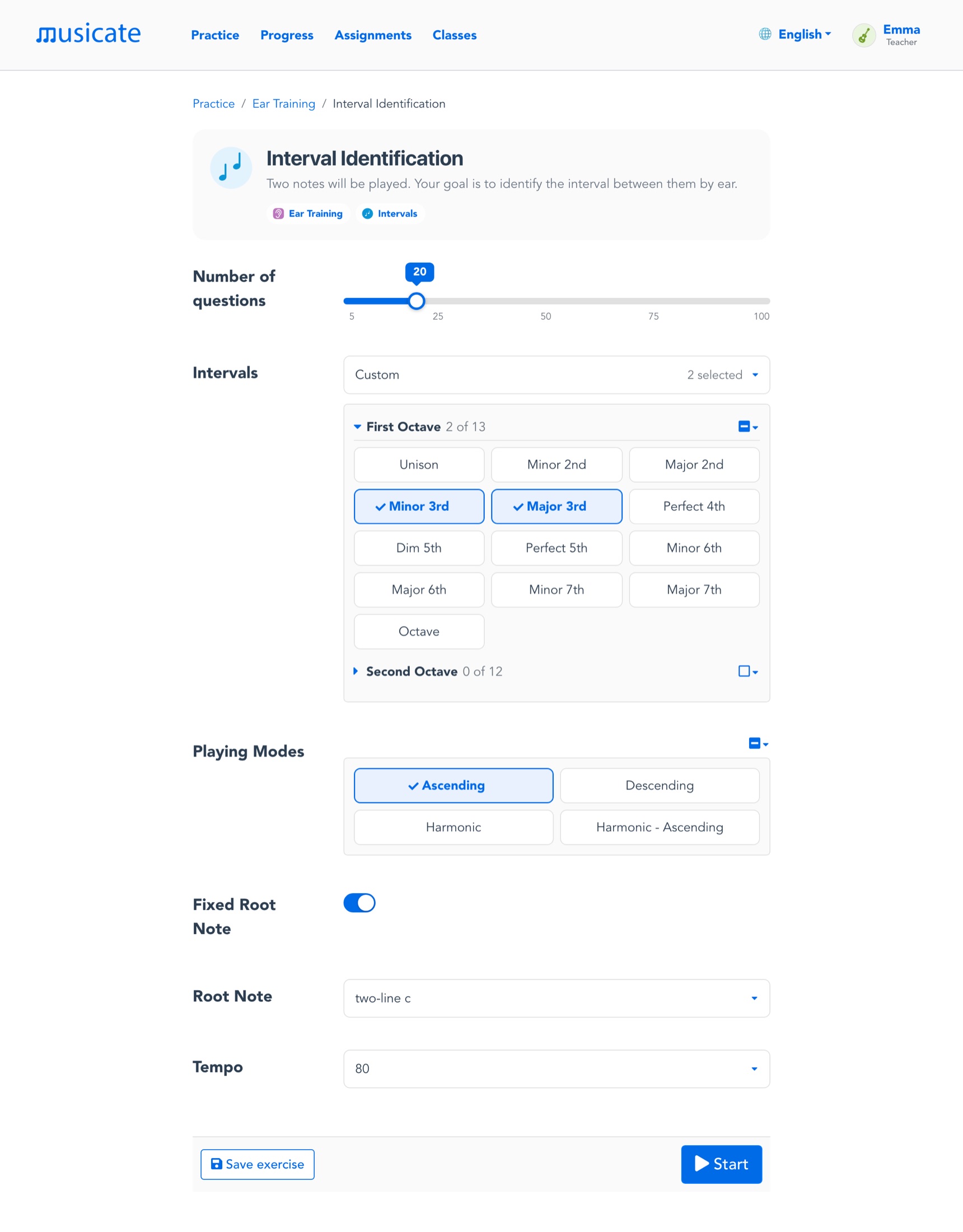
Choose Practice in the menu and open an exercise, for example Interval Identification.
Pick the settings from your lesson: which intervals, how they're played, how many questions.
Save it
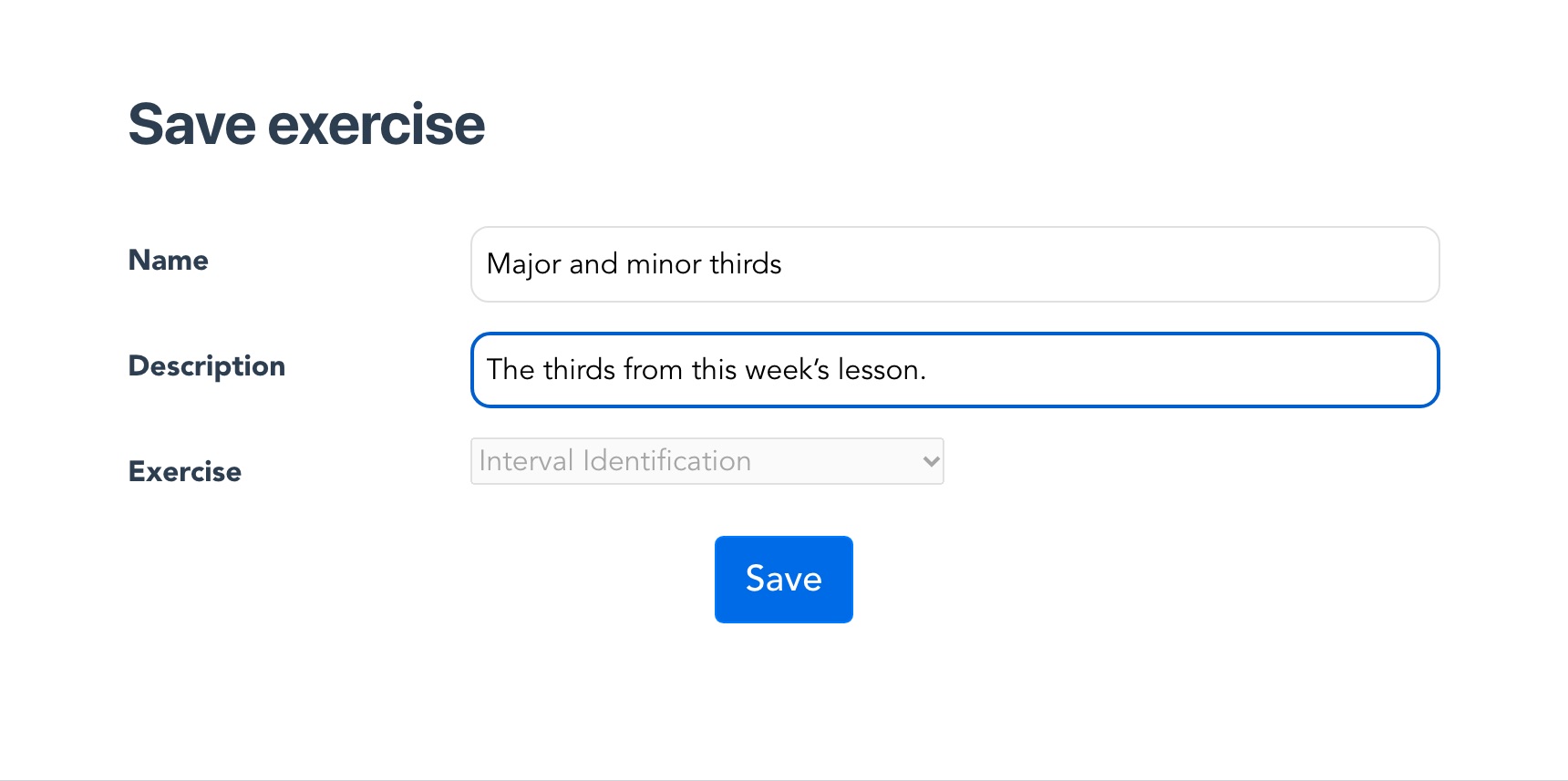
Click Save exercise. Give it a name and a short description, and click Save.
It's now in your saved exercises, ready to use in any assignment.
Create the assignment
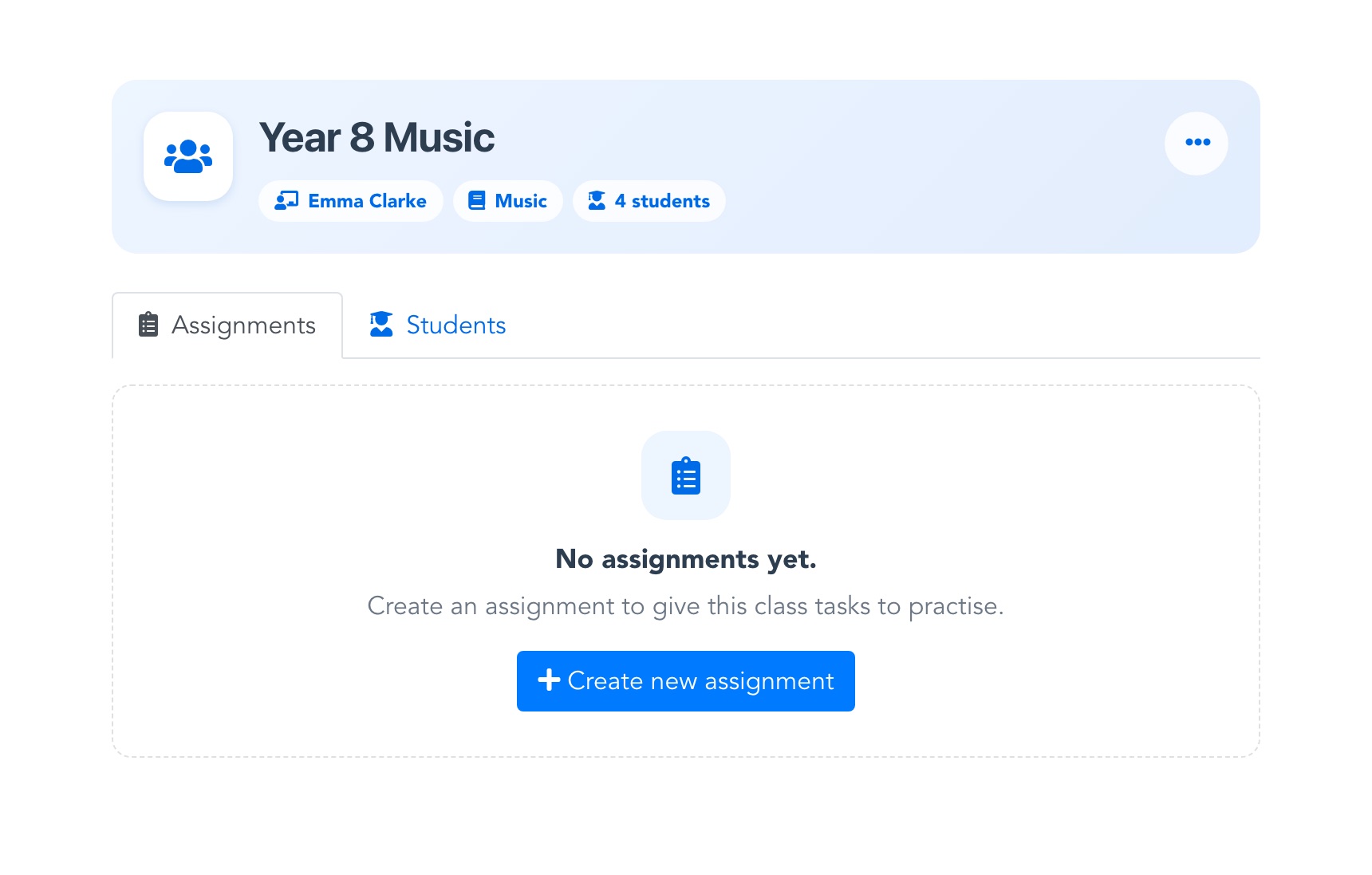
Open your class from Classes. On the Assignments tab, click Create new assignment.
Fill it in
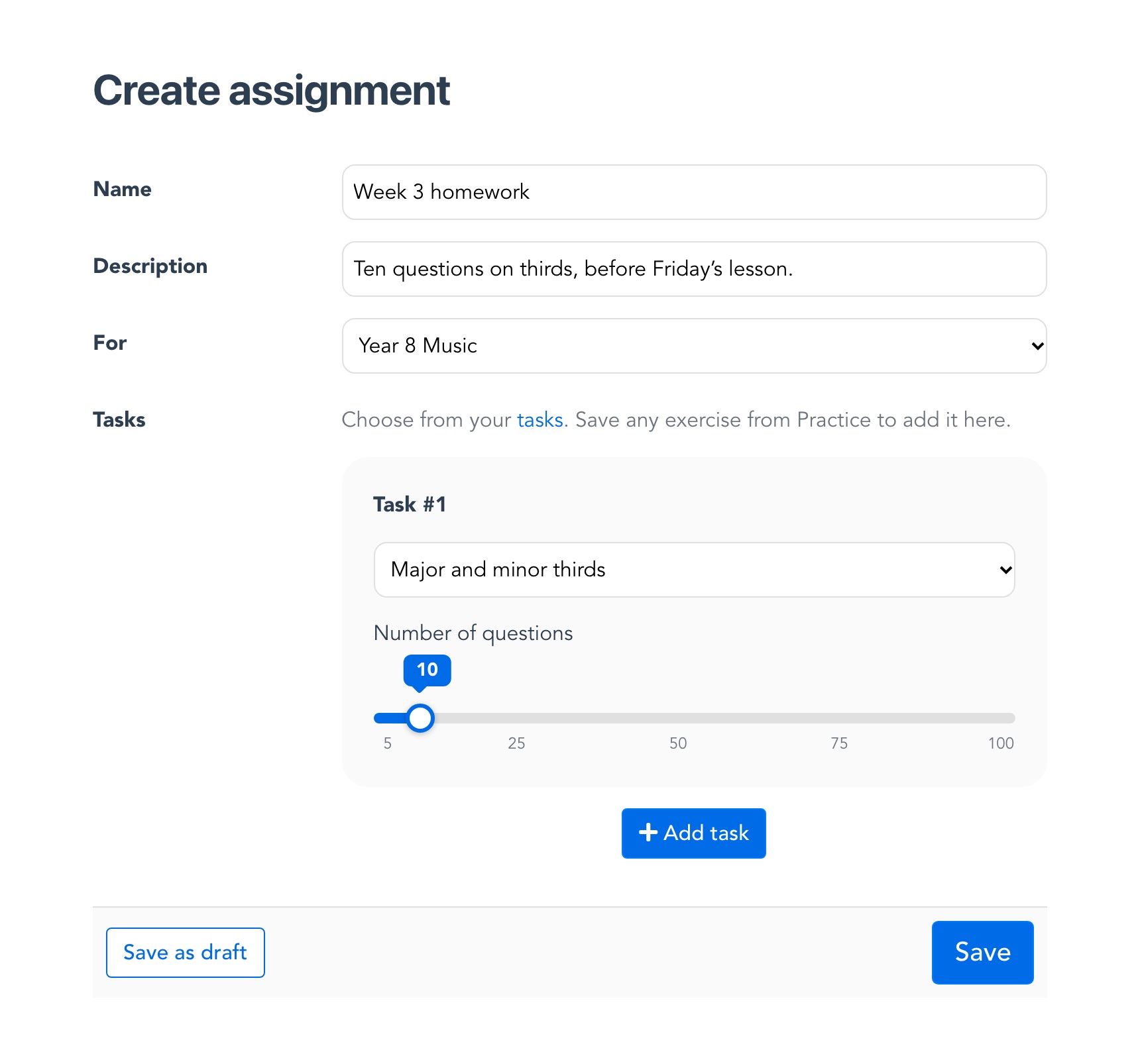
Give the assignment a name and a description. For is already set to your class.
Under Tasks, pick the exercise you saved and how many questions it has. Click Add task to put more than one exercise in the assignment.
Click Save.
Assignments have no due date, so say when it's due in the description. Save as draft keeps it to yourself to finish later.
It's in your class
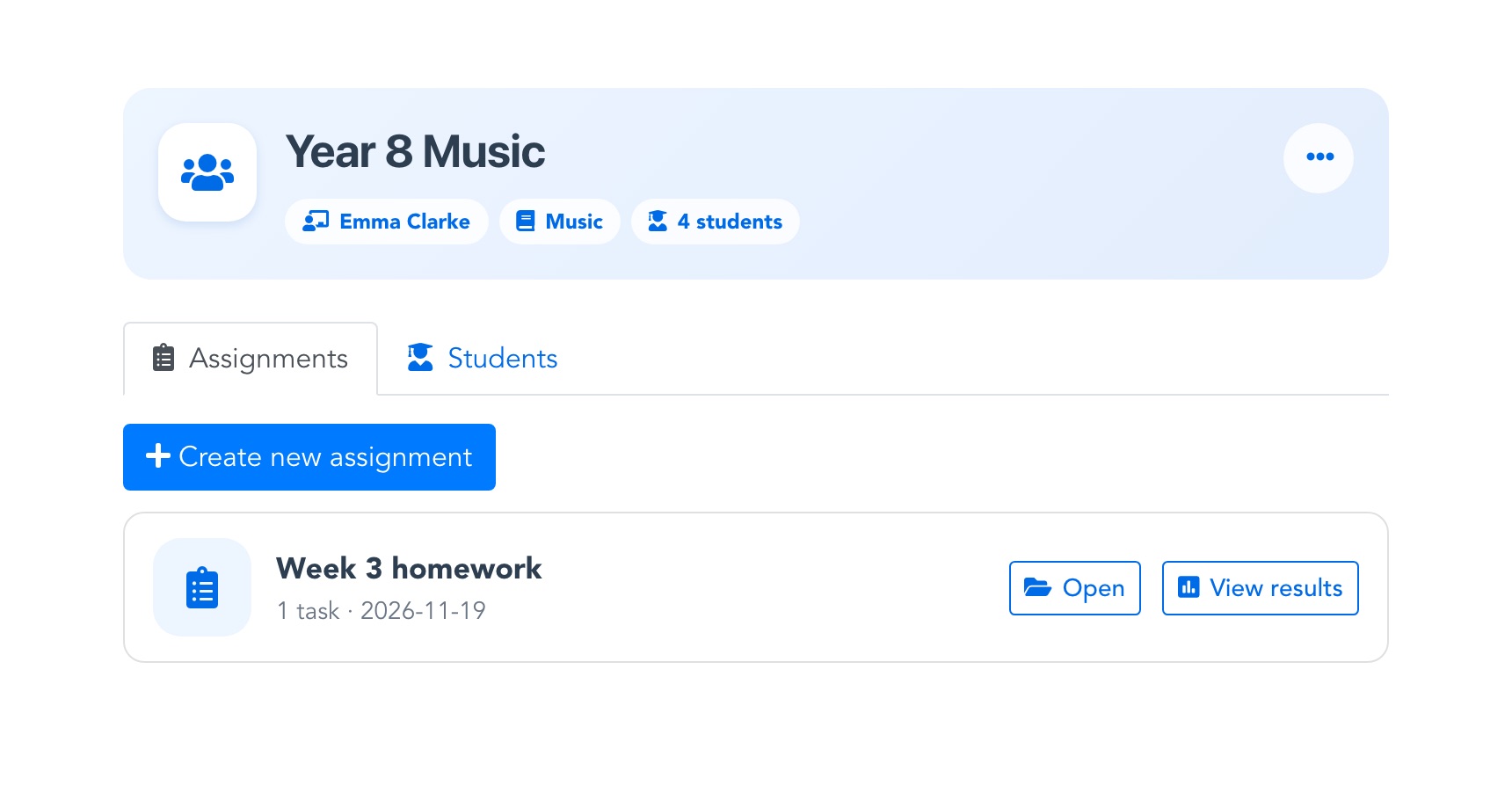
The assignment is now on your class's Assignments tab, and your students see it there too.
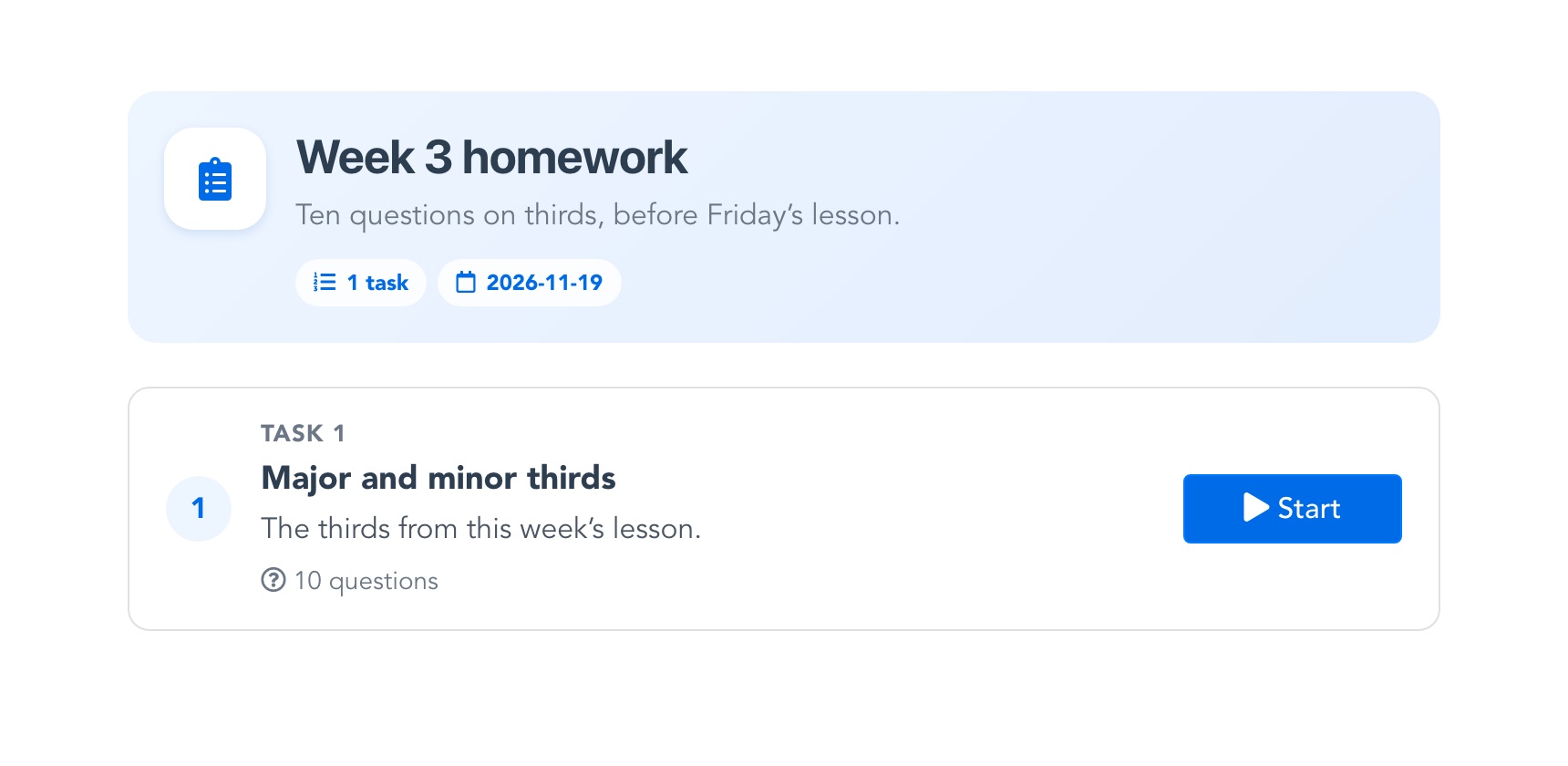
What your students see
Students open the class, then the assignment, and click Start on each task. They see whether each answer is right as they go, and their score at the end. They can try again as many times as they like.