Set up a class and invite your students
Create a class, then send your students one link to join it. It takes a few minutes.
Open Classes
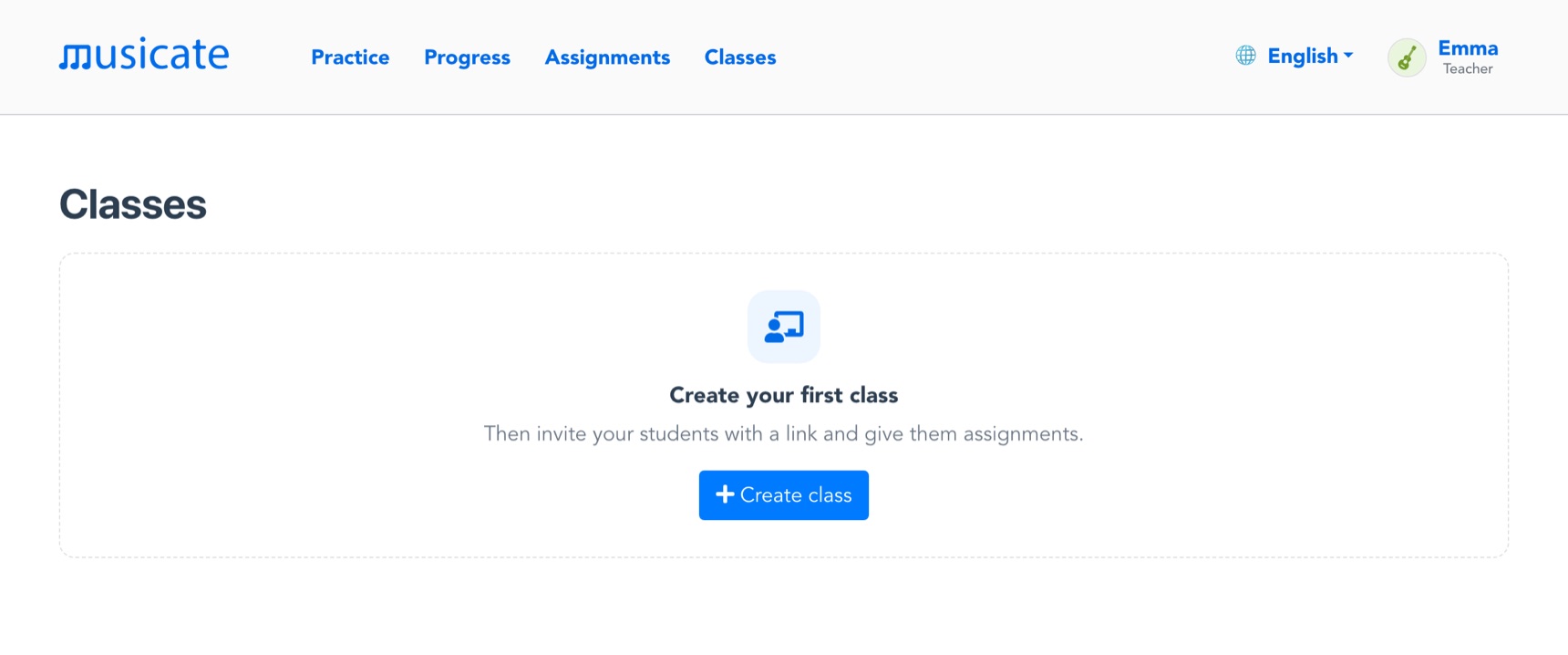
Sign in and choose Classes in the menu. Then click Create class.
Fill in the class
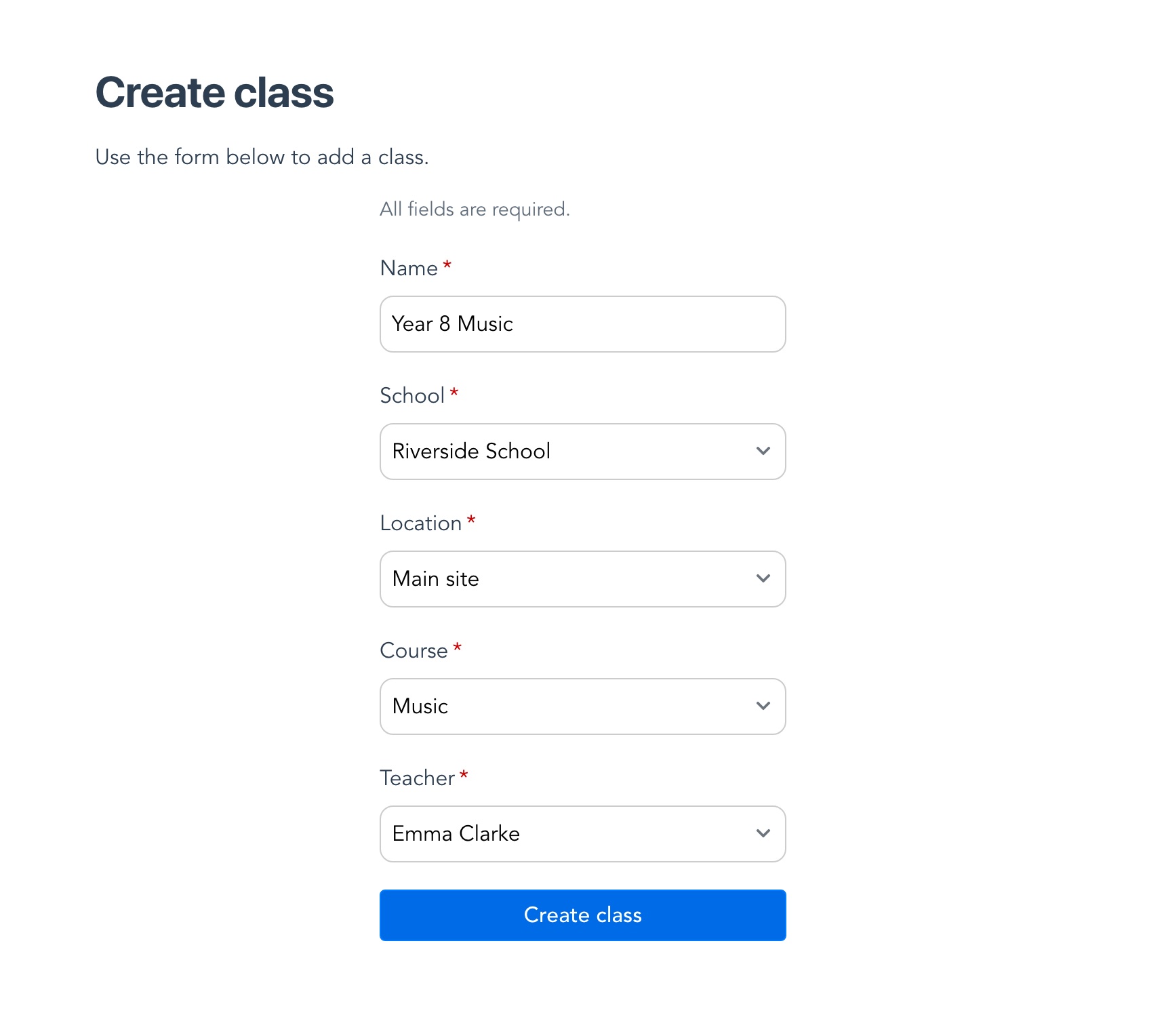
Give the class a name, like Year 8 Music.
Every class belongs to a school, a location and a course. The first time, type a new name into each one; next time you can pick the ones you made. The teacher is you.
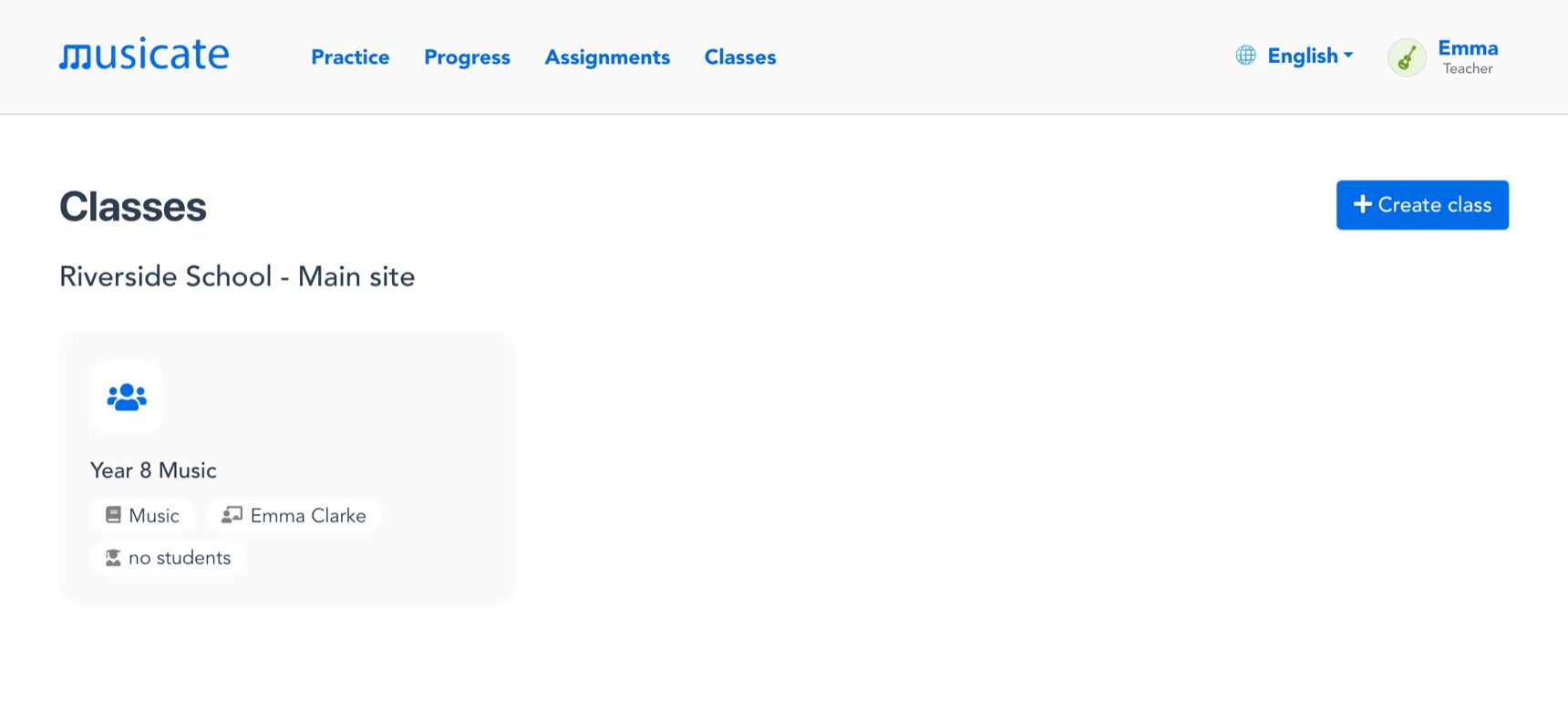
Click Create class. You're back on Classes, with the new class under its school.
Get the invitation link
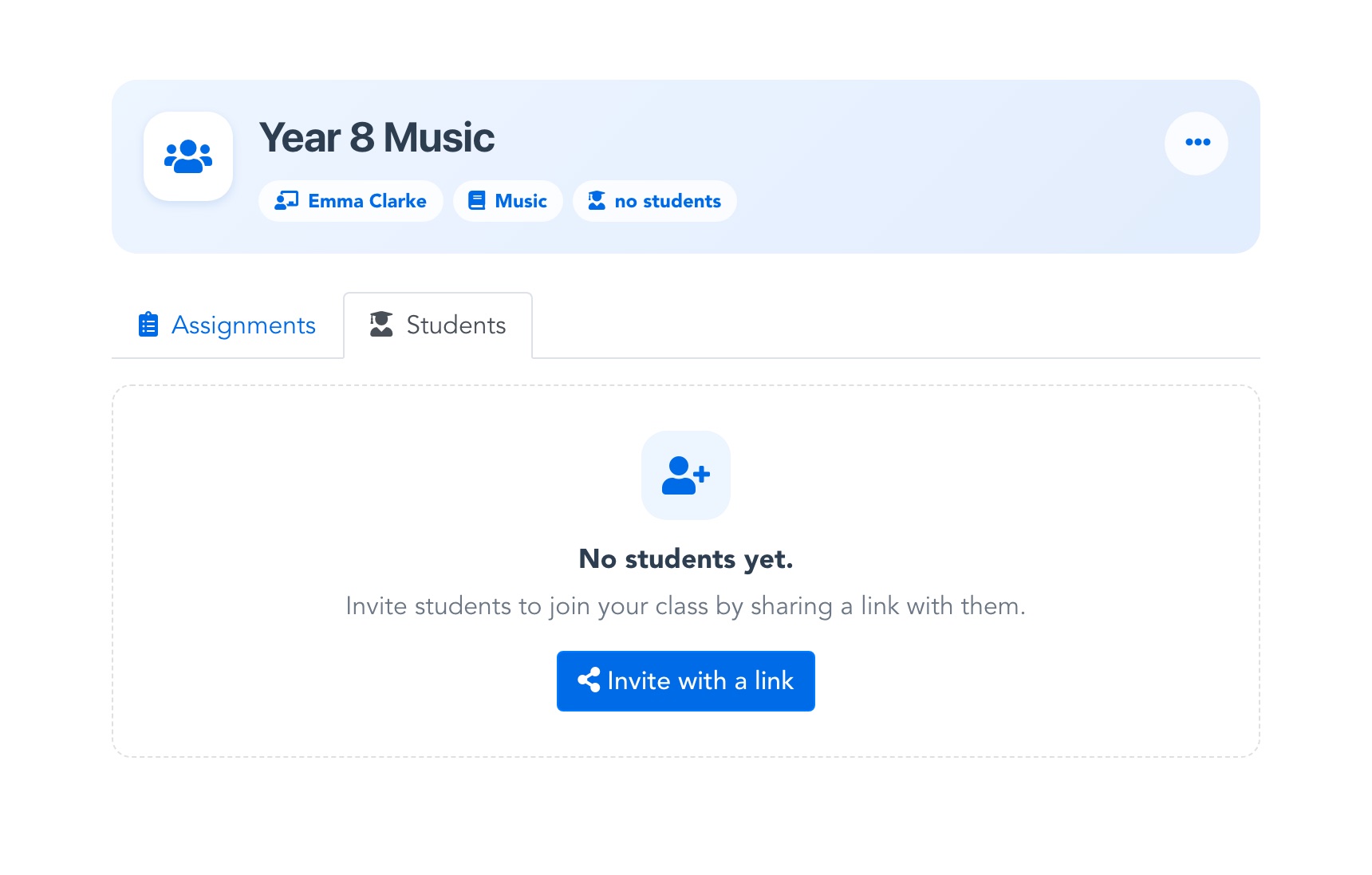
Click the class's name to open it. On the Students tab, click Invite with a link.
Send the link to your students
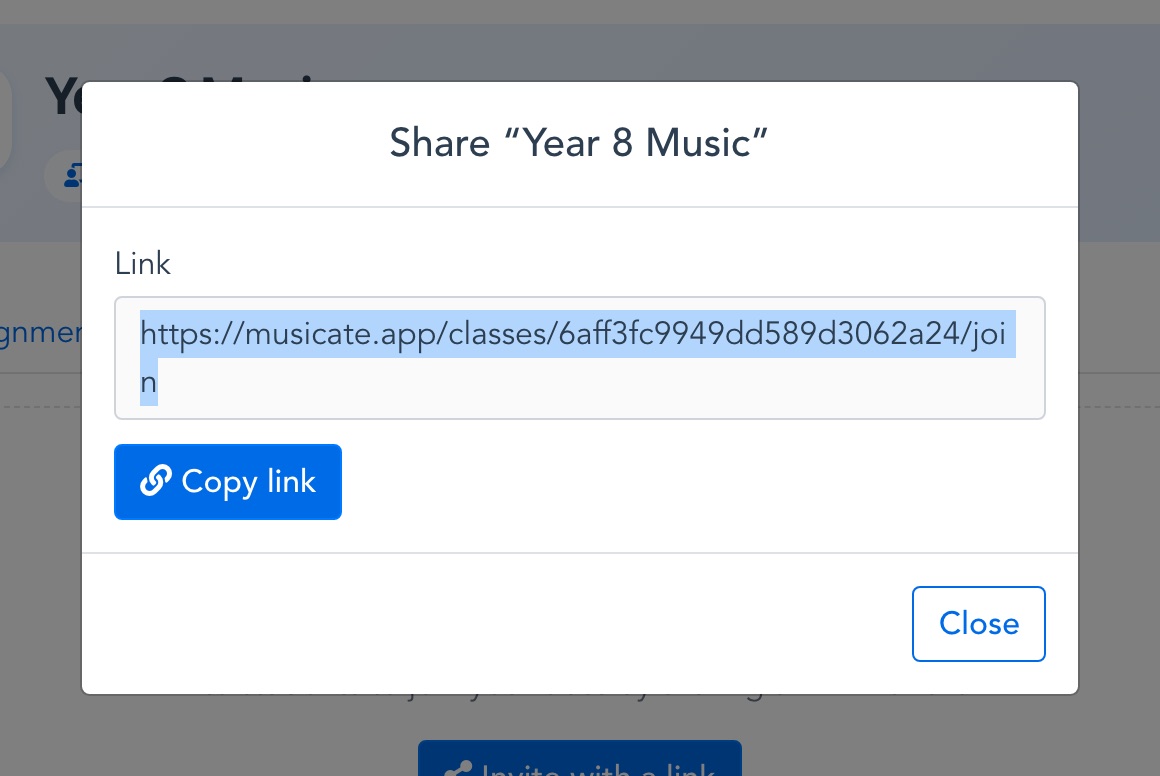
Click Copy link and send it to your students the way you usually do: by email, on your school's messaging app, or on the board in class. Every student can use the same link.
Students join
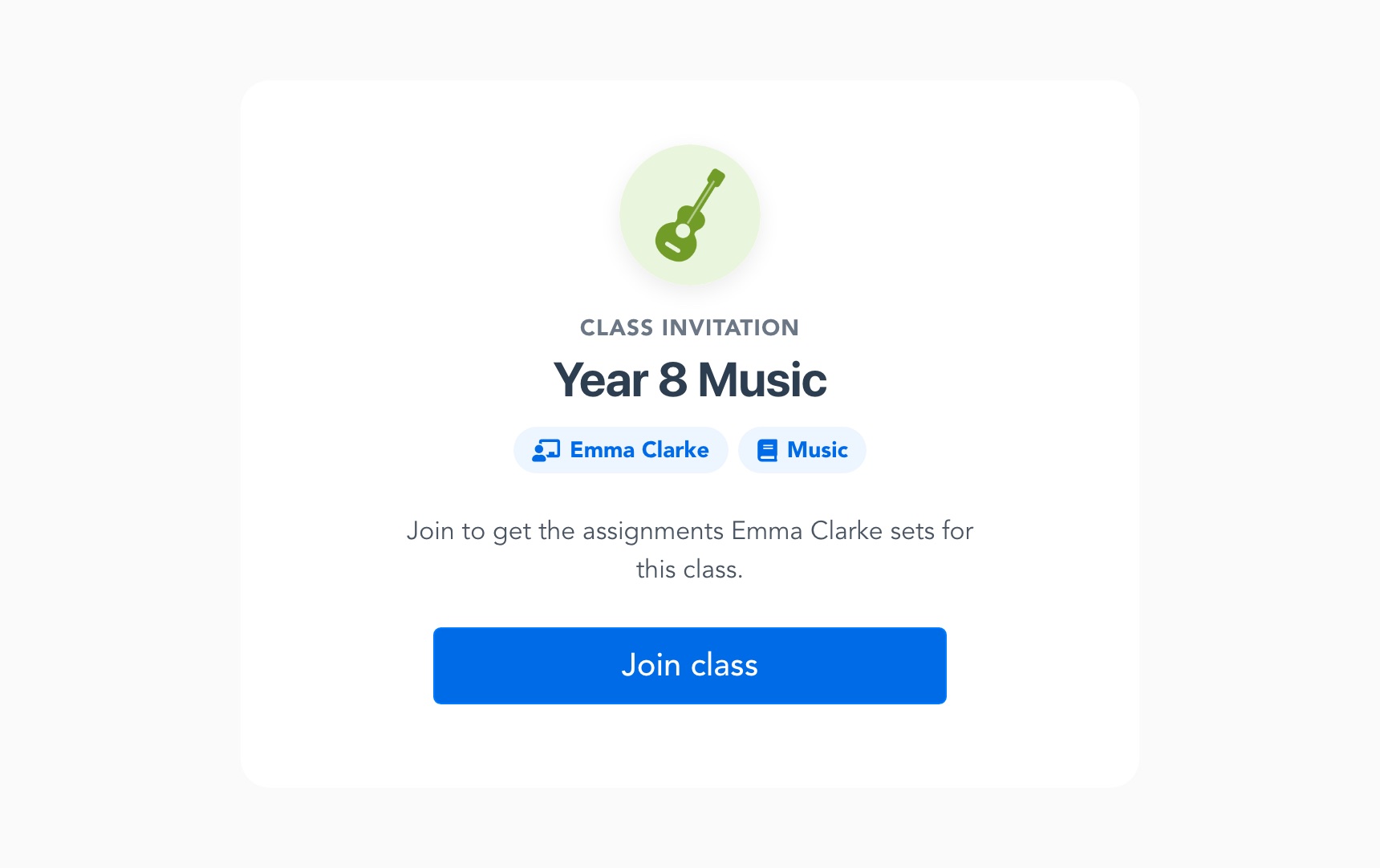
Students open the link and click Join class.
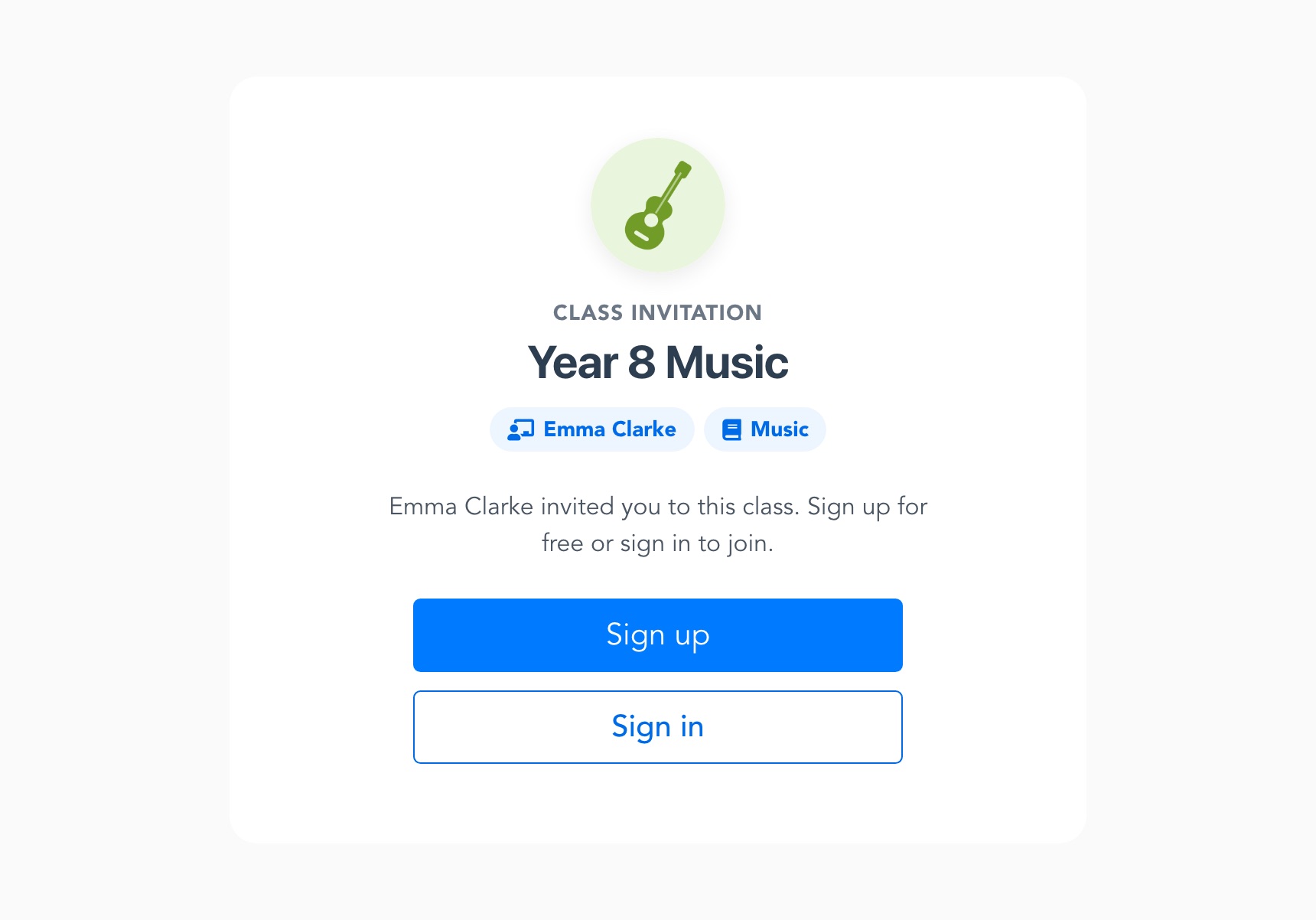
A student without an account chooses Sign up, which is free, or Sign in. They come straight back to the invitation and click Join class.
See who has joined
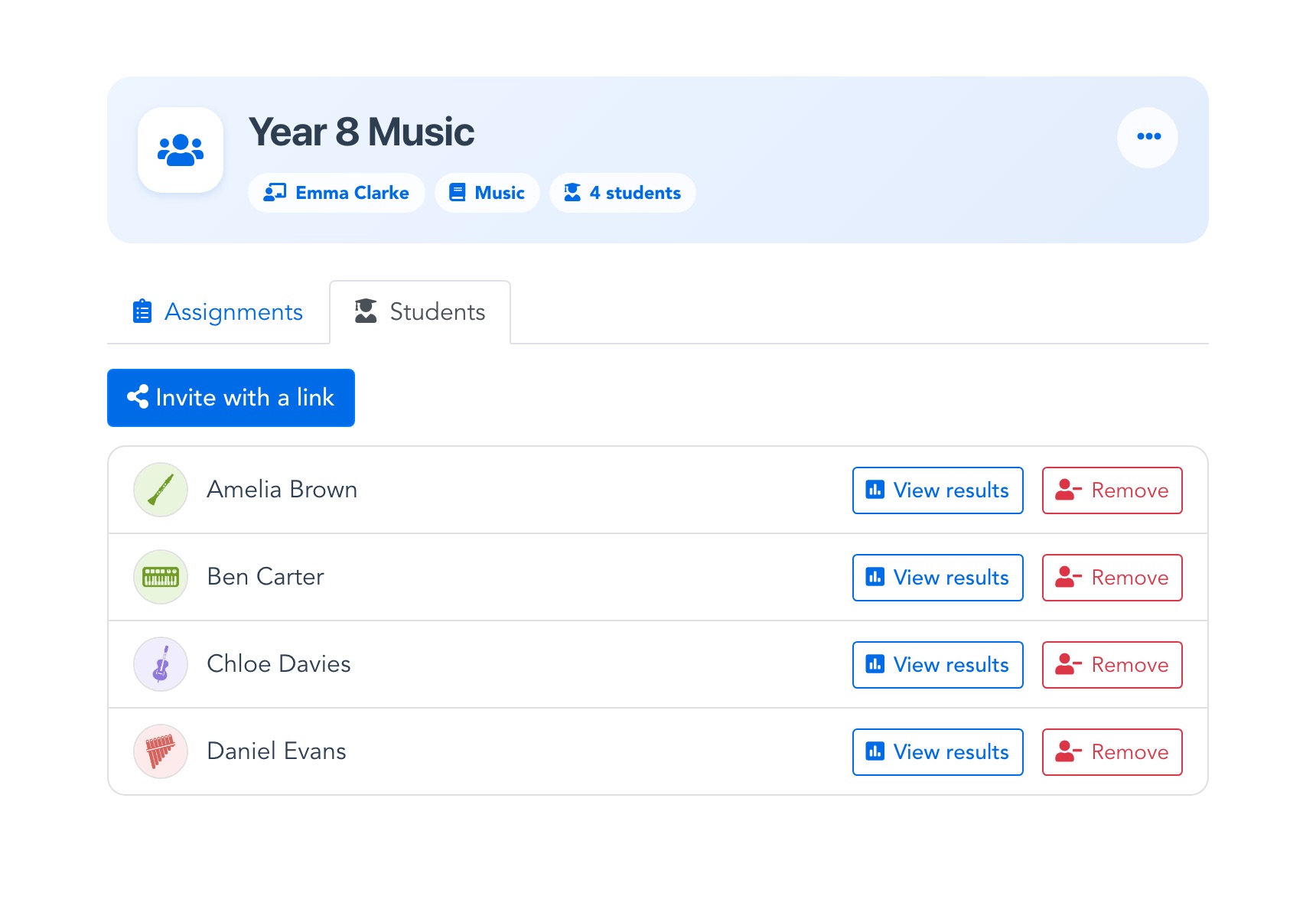
Everyone who joined is on the class's Students tab. From there you can see a student's results, or remove a student who joined by mistake.